Trustly (SlimPay)

Trustly is a payments platform for bank-based payments and direct debit flows.
When connected to Altruon, Trustly (SlimPay) allows you to process Open Banking / Direct Debit payments.
Supported Payment Methods
- Open Banking / Direct Debit
- SEPA Direct Debit (EUR)
- BACS (GBP)
- Autogiro/Bankgiro (SEK)
Requirements
To connect your Trustly account to Altruon, you'll need the following credentials:
- Username
- Password
- Private Key (PEM)
Helpful Documentation
- Trustly Docs Home
- Trustly Event Notifications
- SlimPay Developer Center
- SlimPay Webhook Configuration
These credentials are provided and managed by your Trustly/SlimPay point of contact.
They are not self-generated from the merchant backoffice.
Your Trustly private key is sensitive. Store it securely and never expose it in client-side code.
Step 1: Connect Trustly to Altruon
- Log in to your Altruon account.
- Navigate to Settings > Payment Gateways.
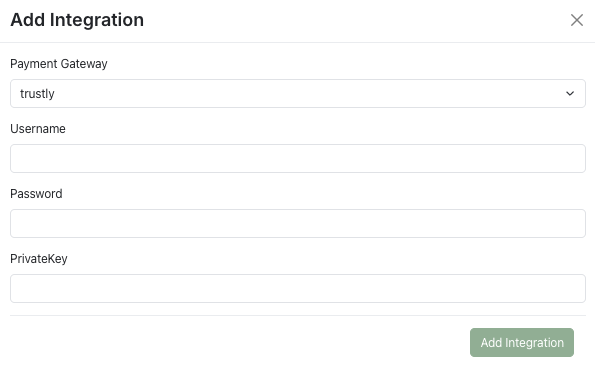
- Click + Add Integration and select Trustly.
- Enter your:
- Username
- Password
- Private Key (PEM)
- Click Save.
If the connection is successful, you will see the Trustly integration marked as Active in Altruon.
Step 2: Webhook Behavior (No Manual Endpoint Setup)
Altruon sends the Trustly notification endpoint automatically on each transaction request.
You do not need to manually copy/paste a webhook URL in Trustly/SlimPay for normal setup.
Recommended checks:
- Confirm with your Trustly/SlimPay point of contact that your account is enabled for event notifications.
- Validate that your integration can receive lifecycle updates such as:
accountpendingcreditpayoutconfirmationdebitcancel
Altruon automatically acknowledges Trustly notifications with the required signed response format.
Step 3: Configure Payment Routing
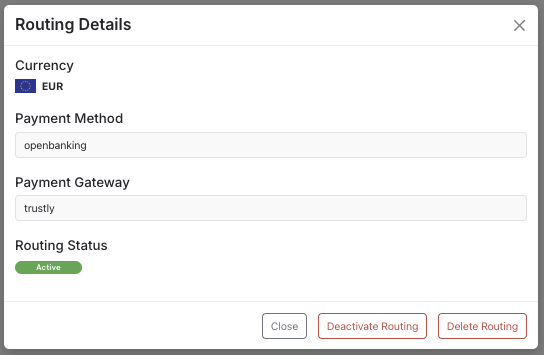
Once Trustly is connected, configure routing rules so Open Banking payments are sent to Trustly:
- Go to Settings > Payment Gateways > Routing.
- Click + Add Entry.
- Select:
- Payment Method:
Open Banking - Currency:
EUR,GBP, orSEK - Gateway:
Trustly
- Payment Method:
- Click Save.
🎉 Success
Your Trustly (SlimPay) gateway is now successfully connected to Altruon!
You can start processing Open Banking / Direct Debit payments through your Altruon checkout flow.